

Computer memory plays a vital role in how fast and efficiently a computer works. If you are learning basic computer concepts or preparing for exams, understanding the types of computer memory is essential. In this guide, we’ll explain all types of computer memory in simple language, with clear examples for beginners.
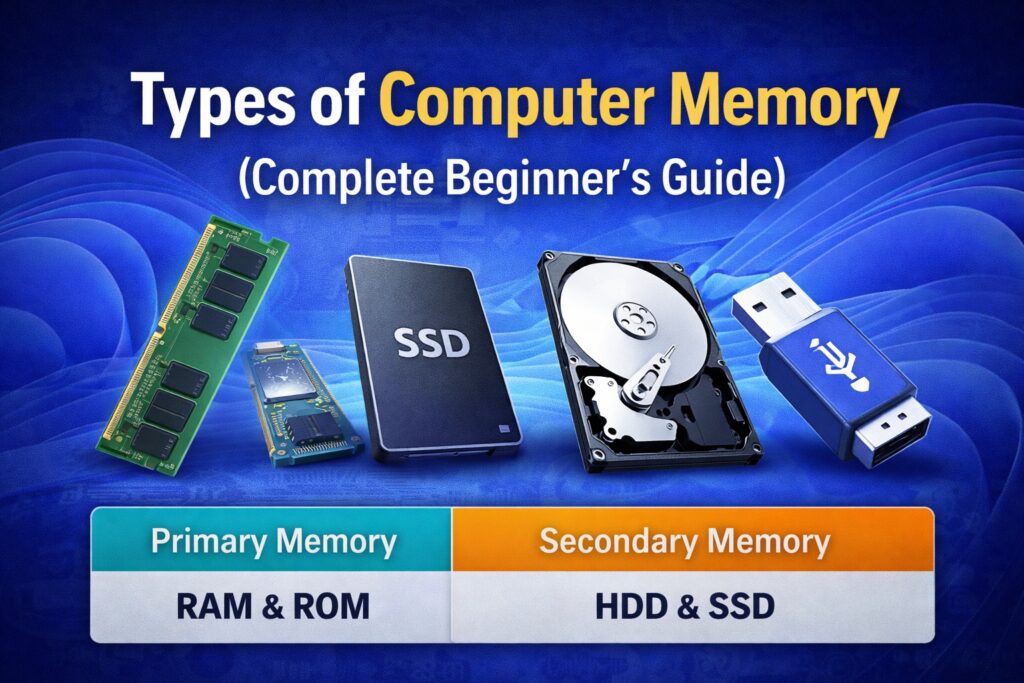
What Is Computer Memory?
Computer memory is the part of a computer that stores data, instructions, and information needed to perform tasks. It helps the system run programs, process data, and save files.
Without memory, a computer cannot function.
Types of Computer Memory
Computer memory is mainly divided into two types:
- Primary Memory
- Secondary Memory
Let’s understand each one in detail.
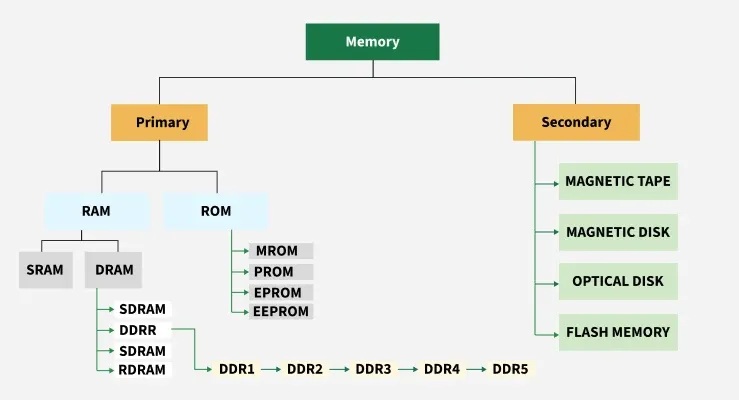
1. Primary Memory (Main Memory)
Primary memory is the memory that the computer uses directly while working. It is fast and located close to the CPU.
Characteristics of Primary Memory
- Very fast
- Limited storage capacity
- More expensive
- Stores data temporarily or permanently (depending on type)
Primary memory is further divided into:
a) RAM (Random Access Memory)
RAM stores data and programs that are currently in use.
Key Features:
- Volatile memory (data is lost when power is off)
- Very fast
- Improves system speed
Example:
When you open a browser or software, it loads into RAM.
Common RAM sizes:
- 8 GB (minimum recommended)
- 16 GB (best for multitasking)
b) ROM (Read Only Memory)
ROM stores important instructions required to start the computer.
Key Features:
- Non-volatile memory
- Data is permanent
- Cannot be easily modified
Example:
BIOS or firmware instructions stored in the system.
c) Cache Memory
Cache memory is a small, high-speed memory located between the CPU and RAM.
Key Features:
- Extremely fast
- Very small in size
- Improves CPU performance
Example:
Frequently used instructions are stored here for quick access.
2. Secondary Memory (Storage Memory)
Secondary memory is used to store data permanently. It is slower than primary memory but offers large storage capacity.
Characteristics of Secondary Memory
- Non-volatile
- Large storage
- Slower than RAM
- Used for long-term data storage
a) Hard Disk Drive (HDD)
HDD stores operating systems, software, and personal files.
Features:
- Mechanical storage
- Affordable
- Slower than SSD
b) Solid State Drive (SSD)
SSD is a modern replacement for HDD.
Features:
- Very fast
- No moving parts
- Improves boot time and performance
💡 Most US users prefer SSDs for faster PCs.
c) USB Flash Drive
A portable storage device used to transfer data.
Examples:
- Pen drives
- Thumb drives
d) Memory Card
Used in cameras, phones, and laptops.
Examples:
- SD card
- microSD card
Difference Between Primary and Secondary Memory
| Feature | Primary Memory | Secondary Memory |
|---|---|---|
| Speed | Very fast | Slower |
| Volatile | Yes (RAM) | No |
| Storage Size | Small | Large |
| Cost | Expensive | Affordable |
| Example | RAM, ROM | HDD, SSD |
Why Understanding Types of Computer Memory Is Important
Knowing the types of computer memory helps you:
- Choose the right PC or laptop
- Improve system performance
- Learn basic computer fundamentals
- Prepare for exams and interviews
Final Thoughts
Understanding the types of computer memory is a fundamental computer skill. From RAM and ROM to SSDs and USB drives, each memory type has a specific role in how a computer works.
👉 Quick Tip:
For better performance, upgrade RAM and switch from HDD to SSD.


